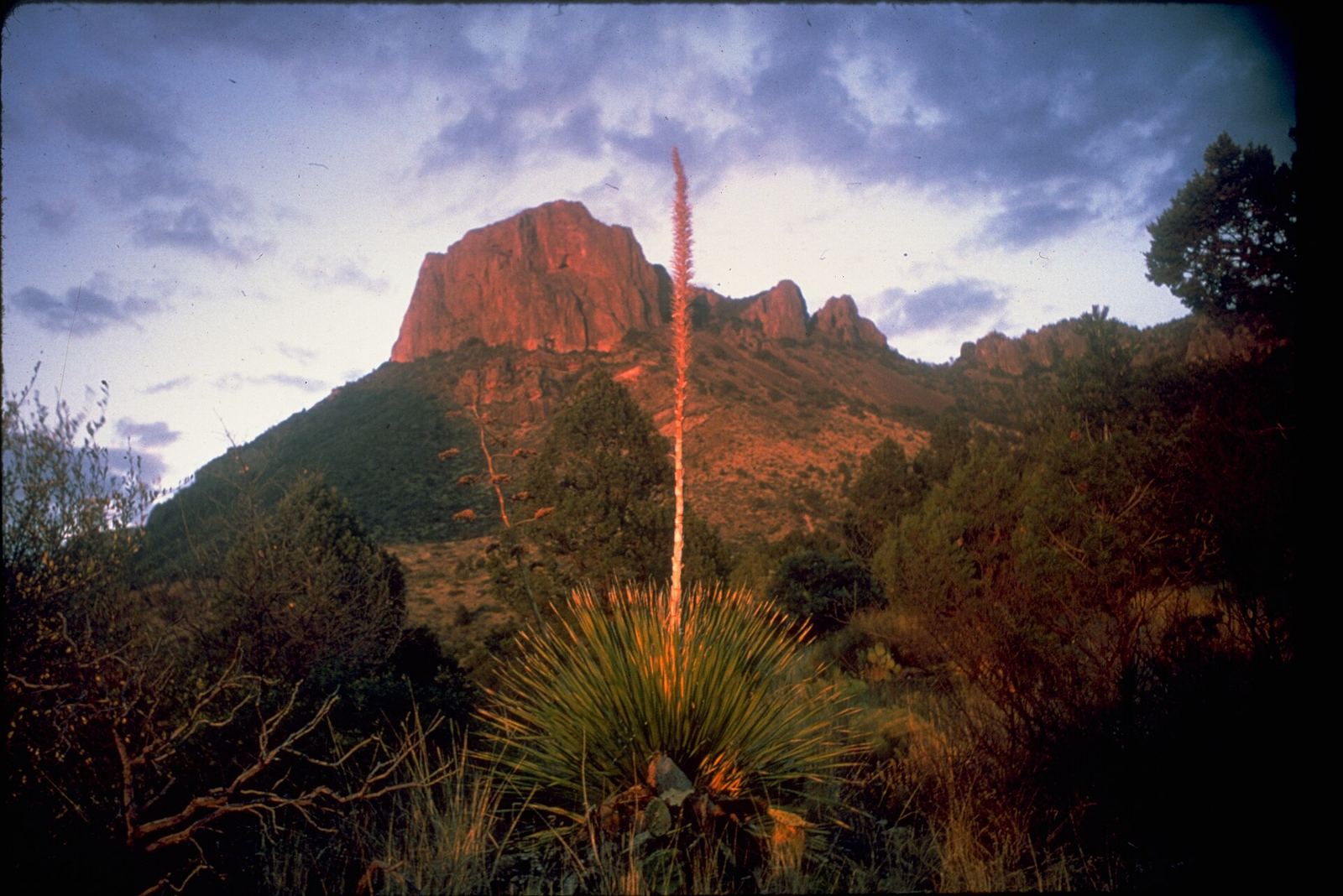
Photo: National Park Service Digital Image Archives, Public domain
How to use QuickCamp
Updated October 31, 2026 · Planning guide · 2 min read
QuickCamp finds campgrounds and hikes along the road you're driving, not just near one spot on the map. Type a route and it lines up places to stop for the night, ranked by how far they are off your route.
The video below walks through a real search from Austin to Big Bend National Park. The steps after it cover the same flow in writing.
Key points
- Type a route like Austin, TX to Big Bend National Park, TX, or paste a Google Maps directions link.
- Camps and Hikes are listed in the panel on the right, with how far each one is off your route.
- Tap a place to see it on the map. Its card has the price, rating, and a link to book on the official site.
- Tap Save to add places to your trip, then open My trips. Searching is free and needs no account.
Watch: QuickCamp in under a minute
1. Enter your route
On the home page, type where you're starting and where you're going in the route box, for example Austin, TX to Big Bend National Park, TX. You can add a stop with via, like San Francisco to Las Vegas via Reno.
If you already planned the drive in Google Maps, copy the directions link and paste it into the same box. Then tap Find camps along this route.
2. Browse camps along the drive
QuickCamp draws your route on the map and lists campgrounds within 20 miles of it in the Camps tab of the results panel (on the right on a computer). Each one shows how many miles it is off your route.
Use Filters to change the distance or the park types (national, state, private, and public land). The map menu above the list switches between Street, Satellite, and Terrain views.
3. Check a camp and book it
Tap a campground in the list or on the map. Its card shows how far it is off your route, how far into the trip it is, the nightly price, and the rating when there is one.
QuickCamp doesn't take reservations. The Book link on the card goes to the official reservation site, such as Recreation.gov or the state park system, so you always book with the agency that runs the campground.
4. Find hikes on the way
Switch to the Hikes tab to see trails and trailheads near your route. They show up as green pins on the map, so you can pair a hike with the camp you stop at that night.
5. Save your trip
Tap Save on any camp or hike to add it to your trip. Open My trips to see everything you saved, share the trip, or open it in Google Maps.
Without an account, saved places stay in the browser you're using. Sign in free to keep your trips on every device.
Try it on your next drive
Type a route and see the camps and hikes along it. Free, no account needed.
Route guides
Sources
Rules, closures, and conditions change. Always check the agency page before you go.